Pinterest Board Covers: How to Make a Branded Set
Board covers are the small styling touch that makes a Pinterest profile look like a brand instead of a scrapbook. They won't move your rankings — the keywords in your board titles do that — but they make a strong first impression when someone lands on your profile. Here's what they are, when they're worth the effort, and how to make a matching set fast.
What a board cover actually is
A board cover is the image shown as the thumbnail for each board on your profile grid. By default Pinterest just shows the most recent pin you saved, which means your covers change constantly and look mismatched. A custom cover is a pin you design specifically to sit at the front of a board — usually a simple graphic with the board's name in your brand fonts and colors — that you then set as that board's cover image.
To set one: pin your cover image to the board, then open the board, click the edit (pencil) icon, and choose your cover under the cover-image option. On mobile the option lives in the same board-edit menu. It's a manual step per board, which is why covers are worth doing once for a tidy set rather than fussing over constantly.
Why they help your branding
Covers are cosmetic, so be honest about what they do and don't do. They will not get you shown to more people — that's a job for SEO and fresh pins. What they do is signal care and consistency the moment a real human visits your profile, which matters for followers and for click-through on your best boards.
- A cohesive first impression: a grid of matching covers reads as "this person knows what they're doing," which nudges profile visitors toward following.
- Faster navigation: named covers let visitors scan your boards by topic instead of squinting at random pin thumbnails.
- Recognition: reusing your palette and fonts across covers reinforces the same brand look people see on your pins.
Make a matching set in Canva
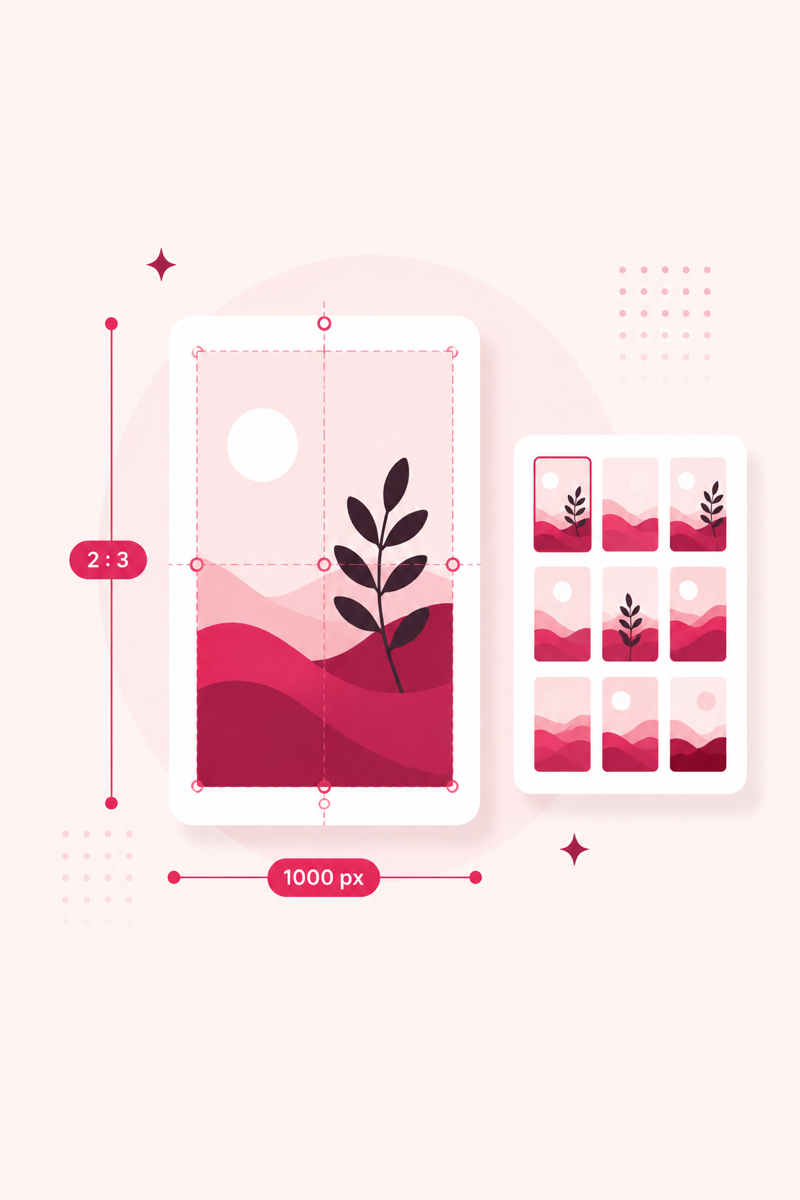
Board covers display as small squares on the profile grid, but the safest approach is to design them at standard pin size — 1000×1500 — so the same image also works as a normal pin, with the important text and graphic centered so nothing critical gets cropped in the square thumbnail. Build one template in Canva, then duplicate it for each board and swap only the board name and background color or photo. Ten covers take about fifteen minutes once the template exists.
Keep them deliberately simple: your brand color as the background, the board name in your brand font, maybe a small icon or a muted photo behind it. The point is uniformity, so resist making each one clever. Export as PNG and pin each cover to its board before setting it.
Write keyword-rich board titles and descriptions
This is the part that affects reach, so give it more thought than the covers. Name boards the way people actually search — "Easy Weeknight Dinners" beats a cute label like "Yum," and "Small Space Home Office Ideas" beats "My Desk." Then write a one-to-two sentence board description that naturally works in a few related phrases, because Pinterest reads board titles and descriptions when deciding what your pins are about. A cute board name with no keywords is a missed ranking opportunity dressed up nicely.
Name boards people can actually find
Get keyword ideas for board titles and descriptions, and score your pins before you post — free, no login.
Open PinRank →Frequently asked questions
Do Pinterest board covers help SEO?
Not directly. Covers are a visual, branding touch. Your board titles and descriptions are what carry keywords and affect how your pins get surfaced in search.
What size should a Pinterest board cover be?
Design at 1000×1500 so the image doubles as a normal pin, and keep the key text and graphics centered so nothing important is cropped when it displays as a square thumbnail.
How do I set a custom board cover?
Pin your cover image to the board, open the board, click the edit pencil, and select that image under the cover option. Repeat for each board.