How to Make Pins in Canva, Step by Step
Canva is where most Pinterest creators actually build pins, and for good reason: it's free to start, the templates are decent, and you can turn out a week of pins in an afternoon. Here's how to set it up correctly and avoid the mistakes that make pins look amateur — then how to make sure the words on them are working as hard as the design.
Start with the right canvas size
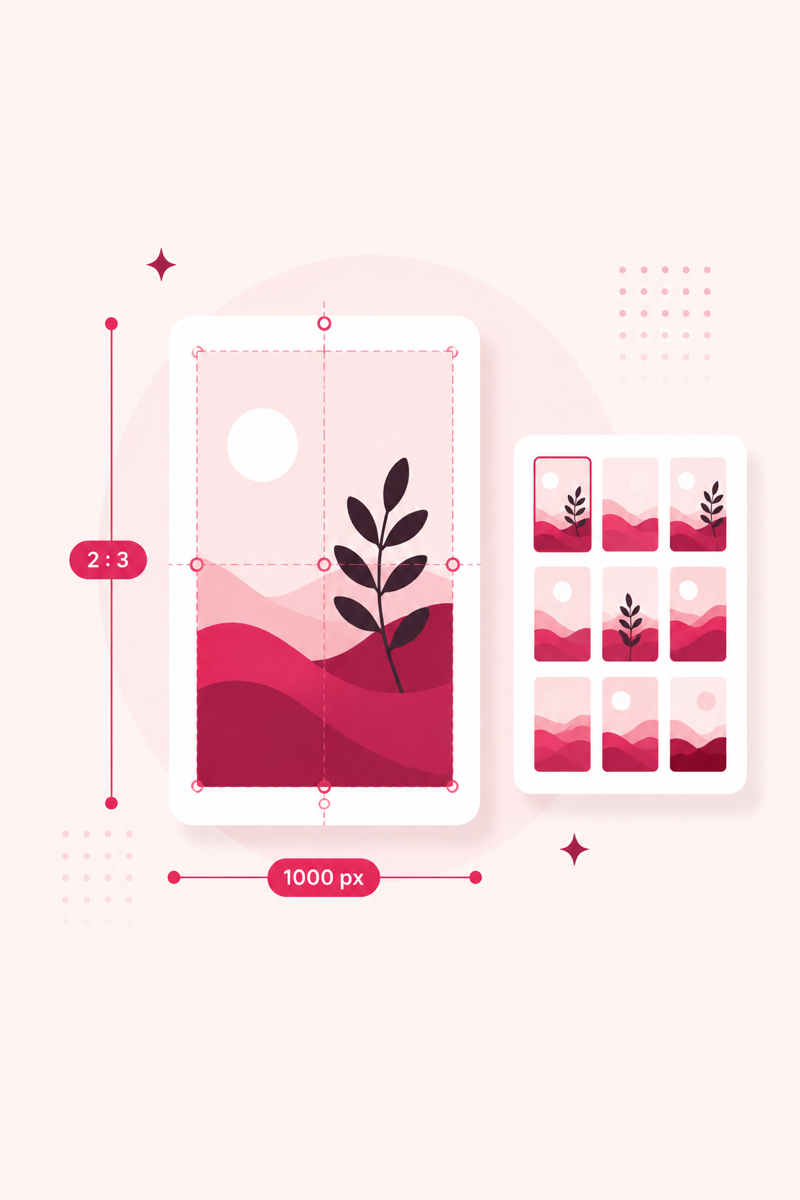
The single most common Canva mistake is using the wrong dimensions. Pinterest's standard pin is a 2:3 vertical ratio, which means 1000×1500 pixels. Don't grab Canva's default "Pinterest Pin" preset without checking it — some presets are 735×1102 or square, and square pins get shrunk in the feed where vertical pins fill the column.
Open Canva, click Create a design → Custom size, and enter 1000 × 1500 px. That's the only ratio you need for standard pins. If you also make video or idea pins, 1080×1920 (9:16) is the vertical-video size. The rest of this guide assumes 1000×1500.
Build one template, then reuse it
Don't design each pin from a blank page. Search Canva's template library for "Pinterest pin," pick two or three layouts you genuinely like, and adapt them into your own base templates. The goal is a repeatable structure so every future pin takes five minutes, not fifty.
- Text overlay that survives thumbnail size: most people see your pin at postage-stamp size in a grid, so use a bold sans-serif headline and zoom to 10% to check it's still legible. Script fonts are for accent words only.
- Contrast: put the headline on a solid or semi-transparent color block, or darken the photo behind it. Text laid directly over a busy photo is the classic amateur tell.
- Light branding: add your site name or a small logo at the top or bottom. It builds recognition across the feed and quietly discourages pin theft.
Set up a brand kit so pins look like a set
Consistency is what makes a Pinterest account look professional, and Canva's Brand Kit exists to enforce it. Even on the free plan you can save a color palette and a couple of fonts; on Canva Pro you get uploaded logos and locked brand fonts. Pick two or three brand colors and one or two fonts, save them, and use nothing else. When every pin shares a palette, your content becomes recognizable in the feed before anyone reads the logo.
Warm, bright pins tend to pop against Pinterest's light interface, so lean toward airy photos over dark, moody ones unless your niche demands otherwise. Aspirational-but-achievable imagery — the "I could actually do this" look — usually earns more saves than pure perfection.
Batch variations without making duplicates
Pinterest rewards fresh pins — new images pointing to your URLs — so one blog post deserves several distinct pins over time, not one. In Canva, duplicate your template and change the photo, the background color, and the headline wording. Three visibly different pins for the same article give the algorithm three chances to find an audience. The key word is visibly: swapping a single word doesn't count as fresh, so vary the image and layout enough that the pins don't read as copies.
When you're done, export as PNG for text-heavy pins (crisper edges) or JPG for photo-heavy ones (smaller files). Name the files with your keyword rather than "Untitled design (3)" — it's a tiny SEO habit that costs nothing.
Great design deserves great keywords
Generate keyword-led title ideas and score every pin before you publish — free, no login.
Open PinRank →Frequently asked questions
Do I need Canva Pro to make good pins?
No. The free plan handles custom sizes, most templates, and a saved palette, which is enough to make professional pins. Pro mainly adds premium templates, background removal, and locked brand fonts.
What size should a Pinterest pin be in Canva?
1000×1500 pixels, a 2:3 vertical ratio, for standard pins. Use 1080×1920 for vertical video or idea pins. Avoid square and horizontal sizes, which get shrunk in the feed.
How many pins should I make per blog post?
Make at least two or three visibly different pins per post over time, each a fresh image. Vary the photo, colors, and headline so they don't read as duplicates.